What Is HTML? A Complete Beginner-Friendly Explanation
HTML Tutorials · What is HTML and explain it · Introduction
What Is HTML and How Does It Work?
HTML is a markup language (stands for HyperText Markup Language), meaning it uses tags to define the structure and content of a webpage. Web browsers use HTML code to show text, images, and layout on a webpage.
Every website you have ever opened, whether it is a search engine, a news portal, an online store, or a company homepage, is built using HTML at its core. HTML does not decide how a page looks in terms of color or spacing; that job belongs to CSS. Instead, HTML tells the browser what each piece of content actually is: a heading, a paragraph, a link, an image, or a list. Once the browser understands what each element is, it knows how to display it correctly on the screen.
✅ Is HTML Easy to Learn?
Yes! HTML is very beginner-friendly because:😊
- ✅ It has a simple syntax (easy-to-read tags).
- ✅ No prior programming knowledge is needed.
How Does HTML Actually Work in a Browser?
When you open a webpage, your browser (Chrome, Firefox, Edge, or Safari) requests the HTML file from a web server. The browser then reads the HTML file from top to bottom and builds something called the DOM, or Document Object Model. The DOM is simply the browser's internal map of every tag, element, and piece of text on the page. Once this map is built, the browser paints it on your screen as the webpage you actually see.
From Code to Screen: The Rendering Process
This process happens in a few quick steps, all completed by the browser in a fraction of a second:
- The browser requests the HTML file for the page you are visiting.
- It reads the HTML line by line and parses each tag it finds.
- It builds the DOM, a tree-like structure representing every element.
- It applies any linked CSS for colors, spacing, and layout.
- It renders the final, visible page in your browser window.
Tags, Elements, and Attributes Explained
To understand HTML properly, it helps to know three small words that appear constantly in any HTML tutorial:
- Tag: A keyword wrapped in angle brackets, such as <p> or <h1>, that tells the browser what type of content follows.
- Element: A complete unit made of an opening tag, the content inside it, and a closing tag, for example <p>Hello</p>.
- Attribute: Extra information added inside the opening tag, such as href in a link or src in an image, that gives the browser more detail about that element.
Example of HTML Code Display
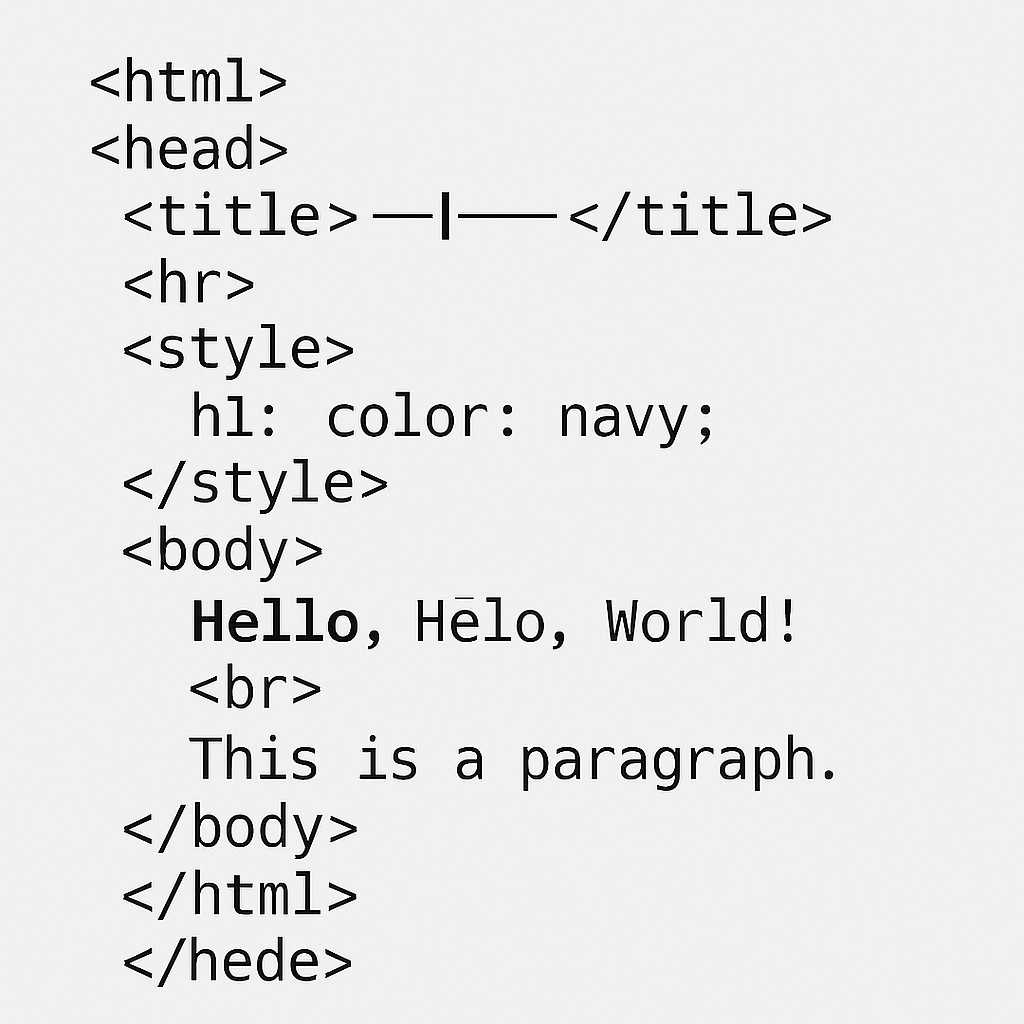
Copy this code snippet and test it out in any text editor or browser:
<html>
    <head>
        <title>My Page</title>
    </head>
    <body>
        <h1>Hello, World!</h1>
    </body>
</html>
Try It Yourself: copy this code and paste it into any plain text editor, save the file with a .html extension, and open it in your browser to see how it works. This is the fastest way to see the connection between the code you write and the page a browser actually shows you. Or skip the text editor entirely and use the live playground right below to see your changes instantly.
Live Code Preview
The Basic Structure of Every HTML Document
Almost every HTML page you will ever build follows the same basic skeleton. Understanding this structure early makes every future HTML tutorial much easier to follow.
The DOCTYPE Declaration
The very first line of any modern HTML file is the DOCTYPE declaration. It simply tells the browser which version of HTML the page is written in, so the browser renders the page using the correct, up-to-date rules rather than an outdated rendering mode.
The Head Section
The <head> section holds information that is not directly visible on the page itself, such as the page title shown in the browser tab, character encoding, linked stylesheets, and metadata used by search engines. Nothing inside the head is displayed as page content, but it plays a big role in how the page behaves and how it appears in search results.
The Body Section
The <body> section contains everything a visitor actually sees and interacts with: headings, paragraphs, images, links, forms, tables, and buttons. Anything you want a user to view on the page must be placed inside the body tag.
Common HTML Tags Every Beginner Should Know
You do not need to memorize hundreds of tags to start writing HTML. A small set of tags covers the vast majority of what beginners use in their first projects.
| Tag | Purpose | Example |
|---|---|---|
| <h1> to <h6> | Headings, from most important to least important | <h1>Title</h1> |
| <p> | A paragraph of text | <p>Text here</p> |
| <a> | A hyperlink to another page | <a href="url">Link</a> |
| <img> | Displays an image | <img src="pic.jpg"> |
| <ul> / <ol> / <li> | Bulleted or numbered lists | <li>Item</li> |
| <div> | A generic block-level container for grouping content | <div>...</div> |
| <span> | A generic inline container, often for styling small text | <span>text</span> |
| <table> | Displays data in rows and columns | <table>...</table> |
HTML vs CSS vs JavaScript: Understanding the Web Trio
Beginners often confuse HTML with CSS and JavaScript, but each one plays a completely different role in building a website:
- HTML provides the structure and content, such as headings, paragraphs, and images. It is the skeleton of the page.
- CSS controls how that structure looks, including colors, fonts, spacing, and layout. It is the styling applied on top of the skeleton.
- JavaScript adds behavior and interactivity, such as button clicks, form validation, and dynamic content updates. It is what makes a page respond to the user.
None of the three replace each other. A real webpage almost always combines HTML for structure, CSS for design, and JavaScript for interactivity, which is exactly why most beginner roadmaps teach HTML first before moving on to the other two.
Why Learn HTML in 2026-27? Career and Practical Benefits
HTML remains one of the most valuable starting points for anyone entering technology, even outside a traditional web development career:
- It is the true foundation of the web. Every browser, every app that renders web content, and every email template ultimately relies on HTML.
- It supports many career paths. Front-end developers, digital marketers, SEO specialists, technical writers, and even SAP consultants working with SAP BTP or Fiori-based content benefit from understanding basic HTML.
- It has a short learning curve. Because HTML is descriptive rather than logical, most learners can read and write simple pages within a matter of days.
- It opens the door to CSS and JavaScript. Once HTML feels comfortable, learning CSS for design and JavaScript for interactivity becomes much easier.
- It is free to learn and practice. All you need is a text editor and a browser, both of which are already available on almost every computer.
A Short History of HTML: How We Got Here
HTML was first created by Tim Berners-Lee in 1991 while he was working at CERN, the European particle physics laboratory. His original goal was simple: he wanted researchers to be able to share documents and link between them easily over a network, which eventually became the World Wide Web. That first version of HTML had only a handful of tags, but the core idea, using simple text tags to describe structure, has stayed the same ever since.
Over the following decades, HTML went through several major versions, each adding new capabilities as the web grew more complex:
- HTML 2.0 (1995): The first version to be formally standardized, giving developers a consistent baseline to build on.
- HTML 4.01 (1999): Introduced better support for stylesheets, scripting, and more advanced page layouts.
- XHTML (2000): A stricter, XML-based version of HTML that required cleaner, well-formed code.
- HTML5 (2014): The current standard, adding native support for audio, video, graphics, offline storage, and meaningful semantic tags without relying on extra plugins.
Today, HTML5 is the version used across virtually every modern website, and it is also the version referenced throughout this tutorial series.
Semantic HTML: Writing Tags That Mean Something
One of the biggest improvements introduced with HTML5 was a set of semantic elements. Semantic tags describe the meaning of the content they wrap, not just its appearance, which makes pages easier for browsers, search engines, and screen readers to understand.
| Semantic Tag | What It Represents |
|---|---|
| <header> | Introductory content or navigation for a page or section |
| <nav> | A block of navigation links |
| <main> | The primary, unique content of the page |
| <article> | Self-contained content, such as a blog post or news story |
| <section> | A thematic grouping of content, usually with its own heading |
| <footer> | Closing content for a page or section, such as copyright and links |
Using semantic tags instead of generic <div> elements for everything makes your HTML far easier to read, easier to maintain, and more accessible to assistive technology such as screen readers used by visually impaired visitors.
How HTML Connects to SEO and Search Rankings
Search engines like Google do not "see" a webpage the way a human does. They read the underlying HTML to understand what a page is about, which is exactly why clean, well-structured HTML matters for search visibility.
- Title tags tell both users and search engines what a page is about at a glance, and they directly influence click-through rates from search results.
- Heading tags (<h1> through <h6>) create a logical outline of the page, helping search engines understand which topics matter most.
- Alt text on images describes visual content in words, which helps search engines index images and helps visually impaired users understand them through screen readers.
- Semantic tags such as <article> and <nav> give search engines extra context about how a page is organized.
- Clean, valid HTML loads faster and is easier for search engine crawlers to parse than messy, deeply nested, or broken markup.
In short, learning HTML properly is not only a coding skill, it is also one of the most practical foundations for anyone interested in SEO, content strategy, or technical writing.
Tools You Can Use to Write and Practice HTML
You do not need expensive software to start writing HTML. A few simple, mostly free tools are enough to practice everything covered in this tutorial:
- A plain text editor: Notepad on Windows or TextEdit on Mac can save files as plain text, which is all HTML really needs.
- A code editor: Tools such as VS Code, Sublime Text, or Notepad++ add syntax highlighting and auto-completion, which makes writing and debugging HTML noticeably faster.
- A web browser: Chrome, Firefox, or Edge is all you need to open an HTML file and instantly see the result of your code.
- Online HTML editors: In-browser tools let you write and preview HTML side by side without saving any files, which is ideal for quick experiments while learning.
Building a Simple Webpage Step by Step
Once you understand the pieces above, building your first real page is mostly a matter of combining them in order:
- Create a new file in your text editor and save it with a .html extension, for example index.html.
- Add the DOCTYPE declaration at the very top so the browser knows to use modern HTML5 rendering rules.
- Add the <html>, <head>, and <body> tags to create the basic skeleton of the document.
- Set a page title inside the head using the <title> tag, since this text appears in the browser tab and in search results.
- Add your visible content inside the body, starting with a heading and a paragraph, then expanding with images, links, and lists as needed.
- Save the file and open it in your browser by double-clicking it, then repeat the edit-save-refresh cycle until the page looks the way you want.
This same cycle, write a little HTML, save the file, and refresh the browser, is exactly how professional developers build far larger websites. The only real difference at scale is the number of files and how much CSS and JavaScript is layered on top of the same HTML foundation.
Best Practices for Writing Clean HTML
Beyond simply getting a page to display correctly, following a few good habits from the start will make your HTML easier to read, easier to maintain, and easier to hand off to other developers later:
- Indent consistently. Nesting tags with clear, consistent indentation makes the structure of a page easy to follow at a glance.
- Use lowercase for tags and attributes. While HTML is not case-sensitive, lowercase tags are the accepted convention and keep code consistent across a project.
- Always close your tags. Even for elements that technically render without a closing tag, closing everything explicitly avoids confusing browser behavior later.
- Write meaningful alt text. Describe what an image actually shows rather than leaving the attribute empty or filling it with keywords.
- Keep files organized. Store images, stylesheets, and scripts in clearly named folders instead of mixing everything into one directory.
- Validate your HTML. Free online validators can catch unclosed tags, invalid nesting, and other small mistakes before they cause visible problems.
Common Mistakes Beginners Make When Learning HTML
Most early HTML mistakes are small and easy to fix once you know what to look for:
- Forgetting closing tags. Every opening tag such as <p> generally needs a matching closing tag </p>.
- Mixing up tag names. Opening a tag as <div> and closing it as </span> confuses the browser's structure.
- Nesting tags incorrectly. Tags should close in the reverse order they were opened, so inner tags close before outer tags.
- Skipping the head section. Leaving out the title or meta tags does not break the page visually, but it hurts accessibility and search visibility.
- Not testing in the browser. The fastest way to catch a mistake is to save the file and open it in a browser to see the actual result.
HTML Attributes in Depth
Attributes are one of the most useful parts of HTML because they let a single tag carry extra information without changing what the tag fundamentally represents. An attribute always appears inside the opening tag, in the form name="value".
| Attribute | Used With | Purpose |
|---|---|---|
| href | <a> | Specifies the destination URL of a link |
| src | <img> | Specifies the file path or URL of an image |
| alt | <img> | Describes an image in words for accessibility and SEO |
| id | Any tag | Gives an element a unique identifier for CSS or JavaScript |
| class | Any tag | Groups elements so they can share the same CSS styling |
Attributes are what turn plain, static tags into flexible, reusable building blocks, and understanding them is an important step between reading basic HTML and actually writing your own pages confidently.
Why HTML Matters Even for SAP Professionals
Because LearnToSAP.com serves a large audience of SAP consultants and learners, it is worth explaining why a basic understanding of HTML is useful even outside a traditional web development role. Modern SAP landscapes increasingly rely on web-based technologies: SAP Fiori applications render in the browser using HTML, CSS, and JavaScript under the hood, SAP BTP applications frequently combine SAPUI5 or custom HTML front ends with backend services, and even simple tasks like customizing SAP Help documentation, building internal knowledge base pages, or formatting HTML-based email templates for approval workflows all rely on the same core HTML concepts covered in this tutorial. A functional consultant who understands basic HTML structure can communicate more effectively with developers, troubleshoot simple front-end display issues, and better understand how Fiori tiles, launchpads, and custom UI5 screens are actually rendered in the browser.
Frequently Asked Questions About HTML
What does HTML stand for?
HTML stands for HyperText Markup Language. It is the standard markup language used to create and structure content on the web.
Is HTML a programming language?
No. HTML is a markup language, not a programming language. It describes the structure of a webpage using tags, but it does not contain logic, loops, or conditions like a programming language such as JavaScript or Python.
Do I need to install anything to write HTML?
No installation is required. You can write HTML in any plain text editor, such as Notepad, and view the result in any web browser. Code editors like VS Code simply make the process easier.
How long does it take to learn HTML?
Most beginners can learn the core HTML tags and structure within a few days of regular practice, since HTML has a small, readable set of tags compared to full programming languages.
What should I learn after HTML?
After HTML, most learners move on to CSS for styling and JavaScript for interactivity. Together, HTML, CSS, and JavaScript form the foundation of front-end web development.
Can I build a complete website using only HTML?
Technically yes, a website can consist of HTML alone, but it will look plain and will not be interactive. Almost every real-world website pairs HTML with CSS for design and often JavaScript for interactivity to create a complete, polished experience.
Is HTML still relevant with modern frameworks like React or Vue?
Yes. Frameworks such as React and Vue still generate HTML behind the scenes to render content in the browser. Understanding raw HTML makes it significantly easier to learn any modern framework, since the underlying output is always standard HTML.